Annotated interface guide
3 calloutsQuick Start
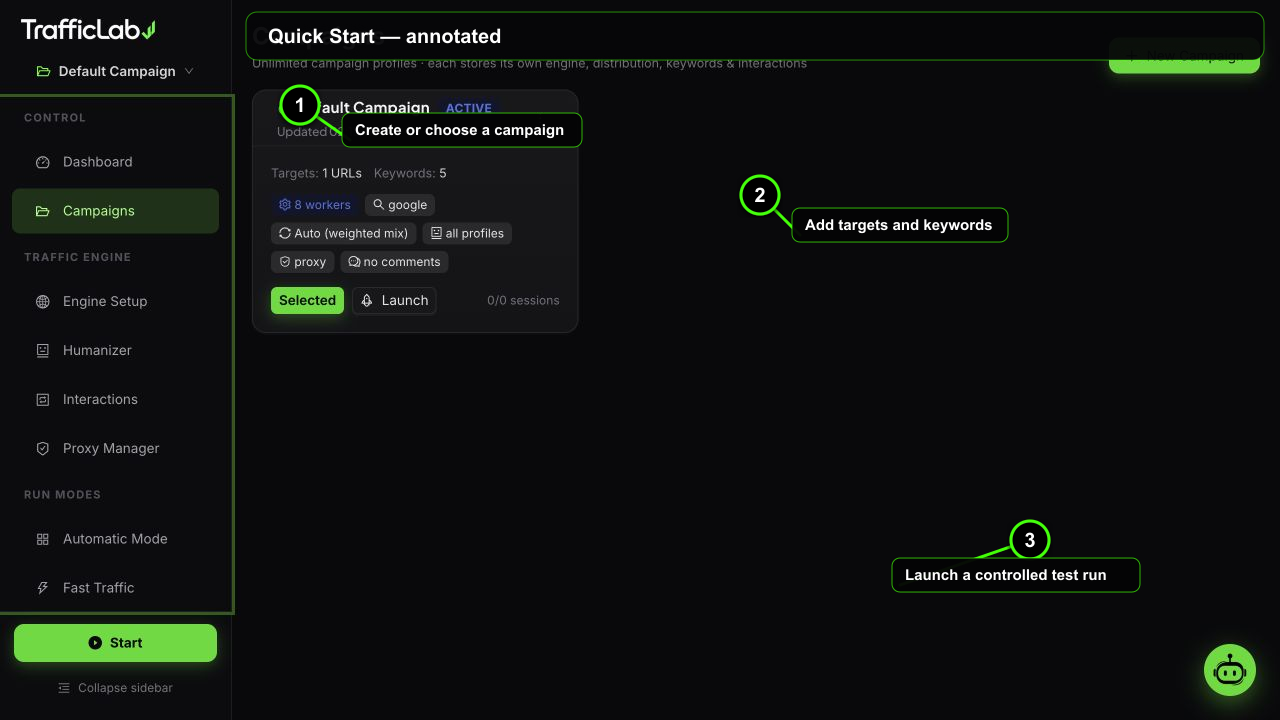
- 1Create or choose a campaign
- 2Add targets and keywords
- 3Launch a controlled test run
This tour gets you from a fresh install to your first completed traffic session in about five minutes. All values below are safe starter defaults you can change later.
1. Create a campaign
- Open Campaigns and press New Campaign.
- Name it, for example
My Site Test. - In the URLs box, put your target URLs, one per line (or comma separated). They must start with
https://orhttp://. - Set Workers to 8 and Sessions to 250 for a normal test.
- Leave Humanizer, Warmup, Proxy and Interactions on, Comments and Ad clicks off.
- Press Create Campaign.
2. Add keywords and more URLs
Open the campaign menu (the three-dot button on the card) and choose:
- Edit: add more target URLs at any time.
- Extract links: paste your homepage URL and let the app crawl it for real same-origin internal links, then add them as targets. This gives organic-looking multi-page sessions.
In Engine Setup, type keywords under the Organic engine section and press Enter to add them as tags. Keywords are what the real browsers type into the search engine. Example:
text
best seo tools
website analytics
digital marketing
organic traffic
3. Recommended engine settings
| Option | Default | Values | Description |
|---|---|---|---|
| Browser engine | Real Browser | Simulation, Real Browser | Real Browser launches actual Chromium sessions. Simulation is for instant demo runs. |
| Session count | Unlimited | Unlimited, 50, 100, 250, 500, 1000, 5000 | How many sessions this run delivers before stopping. |
| Workers | 8 | 1 to 30 | Parallel browser sessions. Start at 8, raise it when everything is stable. |
| Visit duration | 45s to 120s | Min 15 to 120s, Max 60 to 300s | How long each browser stays on the page. Random per session inside the range. |
| Search engine | Google, Bing, Yahoo, DuckDuckGo, Yandex | Where the typed searches happen before clicking through. | |
| Warmup | On | On, Off | Visits neutral sites (Wikipedia, YouTube, Reddit, Amazon, BBC) first, like a real user warming up. |
| Use proxy | Off | On, Off | Route sessions through your proxy pool. Off uses your direct IP, fine for testing. |
| Identity preset | Balanced | Balanced, Desktop Heavy, Mobile Native, Reset | One-click distribution of device, OS and browser mix. |
4. Humanizer and interactions
- Humanizer: leave the master switch on with all profiles selected (the empty selection means all). Each session then gets a random behavior profile, from Deep Reader to Cart Abandoner.
- Interactions: for the first run keep interactions on with the defaults: internal link clicks at 30%, comments off, ad clicks off. You can raise comment rates and ad click probability later from the AI Grader feedback.
5. Start and watch
- Make sure your campaign is selected (green folder icon in the sidebar shows the active campaign).
- Press Start at the bottom of the sidebar, or Launch on the campaign card.
- Real browser windows open. The dashboard starts streaming: warming, searching, browsing, interacting, completed.
- Use Test Traffic on the Dashboard anytime to run a single quick session.
- Press Stop when you have enough data.
6. Read the results
- Dashboard: success rate, active and completed sessions, source/device/browser/OS donuts, top countries, live log.
- AI Grader: press Ask AI or read the local score to find weak spots (for example a high ad click probability or an empty proxy pool).
- Reports: export CSV for full session data or a styled HTML report.
What to test first
Suggested test matrixRuns that answer common questions quickly
- Smoke test: 1 worker, 10 sessions, simulation mode. Confirms URLs and keywords are valid.
- Real engine test: 2 workers, 50 sessions, Real Browser, warmup on, no proxies. Confirms searches and page loads work.
- Proxy test: validate 5 proxies first in Proxy Manager, then run 50 sessions with Use proxy on. Check the country donut on the dashboard.
- Interaction test: 100 sessions with comments at 5% and ad clicks at 1%. Watch the log for comment form submissions.
Everything locks while running
Campaign and engine settings are disabled while the engine runs. Stop the engine to change configuration, then start again.
Ready to go deeper? Read Engine Setup for every option in detail, or Live Dashboard to understand every number.