Campaigns
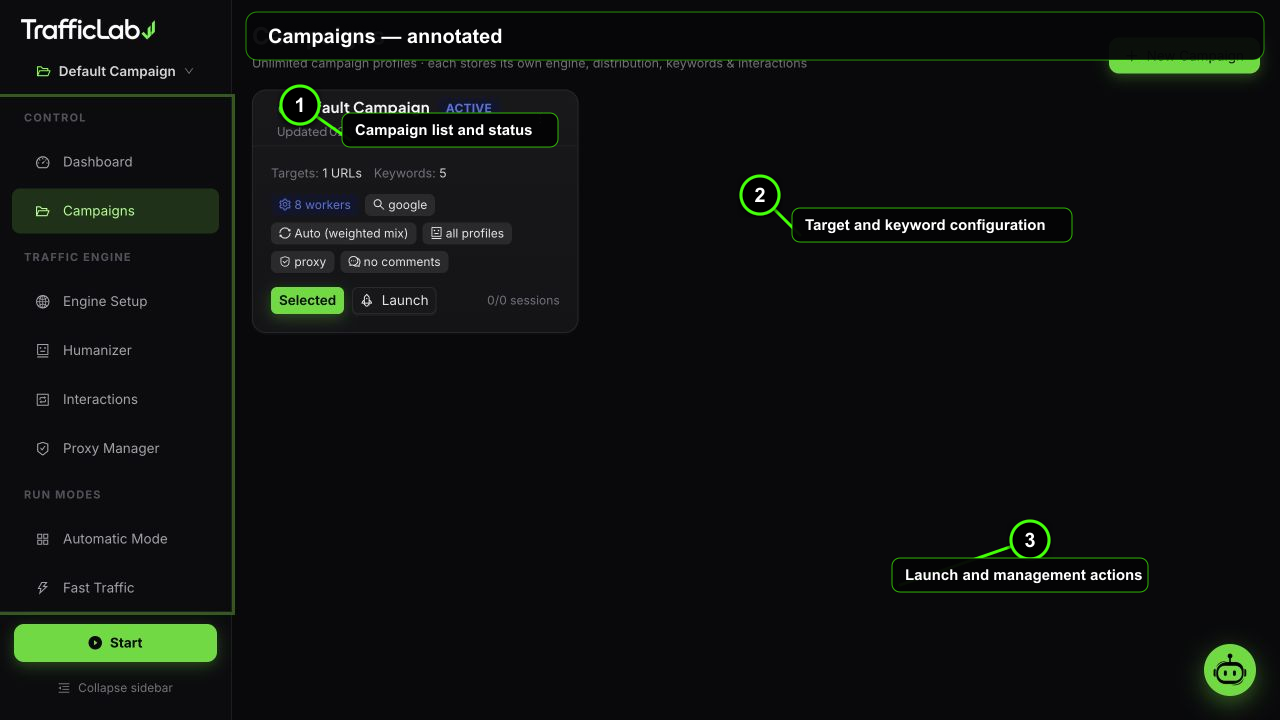
- 1Campaign list and status
- 2Target and keyword configuration
- 3Launch and management actions
A campaign is a complete traffic recipe: target URLs, keywords, engine settings, humanizer profiles and interaction rules. You can have unlimited campaigns and each one runs independently.
Campaign cards
Campaigns appear as cards on the Campaigns page. Each card shows:
- Name with a green flame icon when it is the active campaign, plus an "Active" tag.
- Updated time and a three-dot menu with Edit, Rename, Duplicate, Extract links and Delete.
- Counters: number of target URLs and keywords.
- Configuration tags: workers, search engine, browser, humanizer state, proxy state and comment state.
- Session progress: completed out of total sessions for this campaign.
- Buttons: Select (make it active) and Launch (start the engine with this campaign).
Create a campaign
- Press New Campaign.
- Enter a name (up to 40 characters).
- Enter URLs, one per line or comma separated. Only
http://andhttps://URLs are kept. - Set workers (2 to 20), session count (unlimited, or 100 to 1000) and browser identity (auto, Chrome, Firefox, Safari, Edge).
- Toggle the feature switches: Humanizer, Warmup, Proxy, Interactions, Comments, Ad clicks.
- Press Create Campaign.
Campaign actions
- Edit: change name, URLs, workers, sessions, browser and feature switches in the same form used for creation.
- Rename: quick inline rename.
- Duplicate: copies the campaign with all settings, so you can create variants (for example different distributions) in one click.
- Extract links: opens the link extractor (see below).
- Delete: asks for confirmation. Deletes the campaign and its sessions from the store.
Extract links
Instead of typing URLs by hand, let the app crawl your homepage and collect its real internal links:
- Choose Extract links from a campaign's menu.
- The URL is pre-filled with the campaign's first target URL, you can change it.
- Press the extract button. The desktop app fetches the page and collects same-origin internal links (up to 40 in browser preview).
- The links are appended to the campaign's target URLs, duplicates removed.
Active campaign
The sidebar shows the active campaign at the top with a dropdown switcher. Pages such as Engine Setup, Humanizer and Interactions always edit the active campaign, so switch campaigns before configuring. The dashboard and reports also reflect the active campaign's sessions.
Launch and stop
- Launch (on the card) or Start (sidebar): starts the engine in manual mode with the active campaign.
- Stop: stops the engine. If "confirm stop" is enabled in Settings, a confirmation appears first.
- Locked while running: campaign and engine settings are disabled during a run, and a notice appears on the affected pages.
List view
When you have more than six campaigns, a compact list view is added below the cards with quick Select buttons for every campaign.
Related
- Engine Setup: the detailed engine options of the active campaign.
- Quick Start: a full first-run walkthrough.