Annotated interface guide
3 calloutsFirst-run checklist
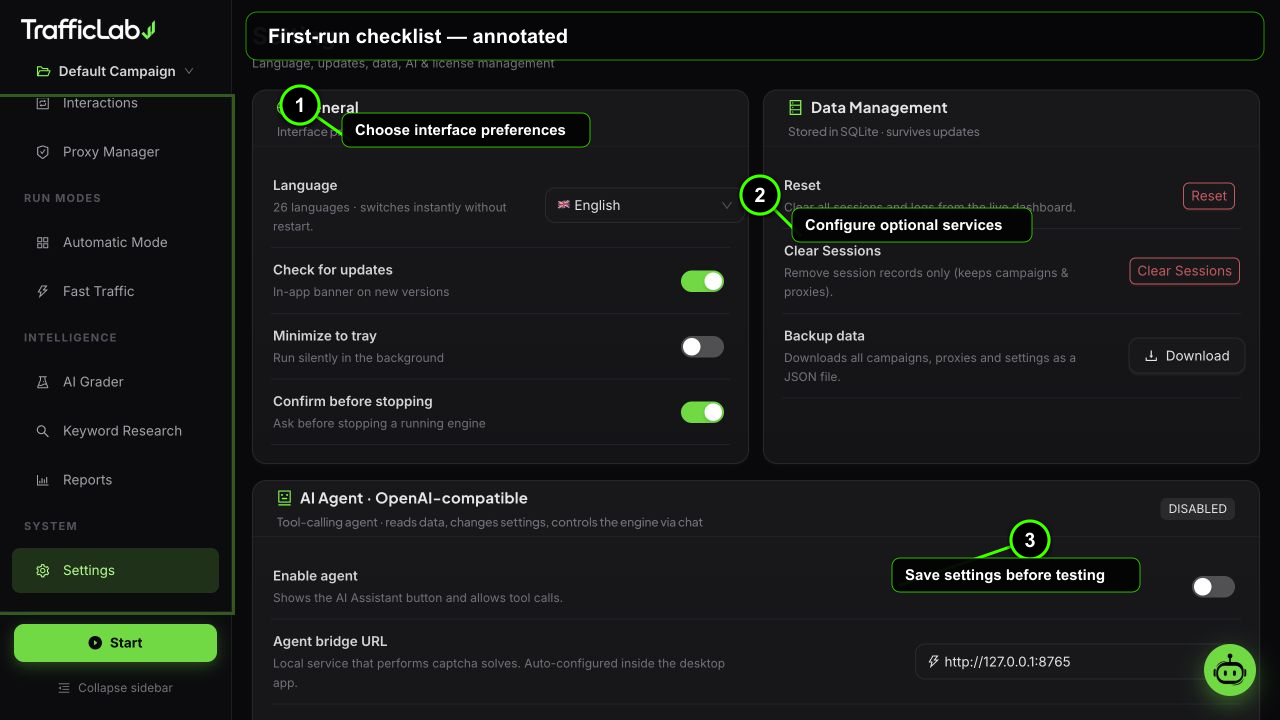
- 1Choose interface preferences
- 2Configure optional services
- 3Save settings before testing
On first launch the app creates a Default Campaign and opens the Live Dashboard. Follow this checklist to connect the optional services (AI, captcha, proxies) and run your first real session.
The checklist
Check the engine mode
Engine Setup shows "Browser engine: Real Browser" by default. Real browsers require the desktop app. Keep it on Real Browser for actual traffic.
Connect the AI Agent (optional)
Settings, then AI Agent. Enable it, paste an OpenAI-compatible base URL and API key, pick a model, and press Test connection.
Connect the Captcha Service (optional)
Settings, then Captcha Service. Enable it, paste your 2Captcha key, check the balance, and run the self-test. It solves a real demo captcha.
Add your target URLs and keywords
Campaigns, then edit the campaign, or use Extract links to pull real internal links from your homepage.
Tune the engine
Engine Setup: workers, session count, visit duration, warmup, traffic distribution and identity mix.
Prepare proxies (optional)
Proxy Manager: paste proxies or auto-download, then Validate All. Only working proxies stay in the pool.
Press Start
The sidebar button turns green, real browsers open, and the Live Dashboard starts streaming sessions.
Step by step: optional services
AI AgentOpenAI-compatible chat models, used for the chat assistant and AI comments
- Open Settings and find the AI Agent card.
- Turn on the enable switch.
- Enter a bridge URL (default
http://127.0.0.1:8765) and press Check to confirm the local bridge is online. - Enter an OpenAI-compatible base URL (for example
https://api.deepseek.com/v1) and your API key. - Press Load models to fetch the model list from your endpoint, then pick one. You can also type a custom model name.
- Press Test connection. A green tag with latency in ms means everything works.
What the AI can do
The agent reads your dashboard, campaigns and logs, changes campaign settings, starts and stops the engine, and solves captchas on demand. It streams answers into the chat drawer with live tool chips. See AI Agent Chat.
Captcha Service2Captcha, rucaptcha or CapMonster Cloud
- Open Settings and find the Captcha Service card.
- Pick a provider: 2captcha.com, rucaptcha.com or CapMonster Cloud.
- Paste your API key and enable the service.
- Press Check balance to confirm the key is valid.
- Press Run self-test. The app solves Google's official demo reCAPTCHA through the API and reports the result.
- Optionally enable auto-solve so captchas detected in real pages are solved automatically.
Captcha types
20 types are supported, including image, reCAPTCHA v2/v3/Enterprise, hCaptcha, Turnstile, FunCaptcha, GeeTest v3/v4, DataDome and TikTok. See Captcha Service.
GA4 (optional)Send real Measurement Protocol events to Google Analytics 4
- Create a GA4 stream in your Google Analytics property and copy the Measurement ID (G-XXXXXXXXXX).
- Create an API secret in Admin, Data Streams, then Measurement Protocol API secrets.
- Paste both in Settings, GA4, and enable the service.
- Press Send test event. A green tag with a 204 response means the connection works.
License keyActivate after purchase
Paste your purchase key in Settings, License and press Activate. The key is at least 8 characters. Activation is instant and can be transferred between PCs at any time.
text
XXXX-XXXX-XXXX-XXXXYour first real session
- In Campaigns, select your campaign (or create one) and press Launch.
- Watch the sidebar: the Start button turns into Stop, and a live elapsed timer appears.
- Open the Live Dashboard. Sessions appear with stages: queued, warming, searching, browsing, interacting, completed.
- Check the session log at the bottom for per-session events.
- When done, press Stop, then export a report from Reports.
Keep it small at first
For a first run use 2 workers and 50 sessions. You can watch every stage in the log without overwhelming your machine or your site.
Simulation vs Real Browser
- Simulation: instant demo runs, no browsers. Available per campaign in any environment, including the browser preview.
- Real Browser: actual Playwright Chromium sessions with real searches, typing, browsing and interactions. Only in the desktop app.
- Desktop only notice: if the engine is set to Real Browser but the app is running in a normal browser, a warning banner explains that the real engine needs the desktop app.
Done with setup? Take the Quick Start tour for a recommended starter configuration.