Annotated interface guide
3 calloutsInstallation and first launch
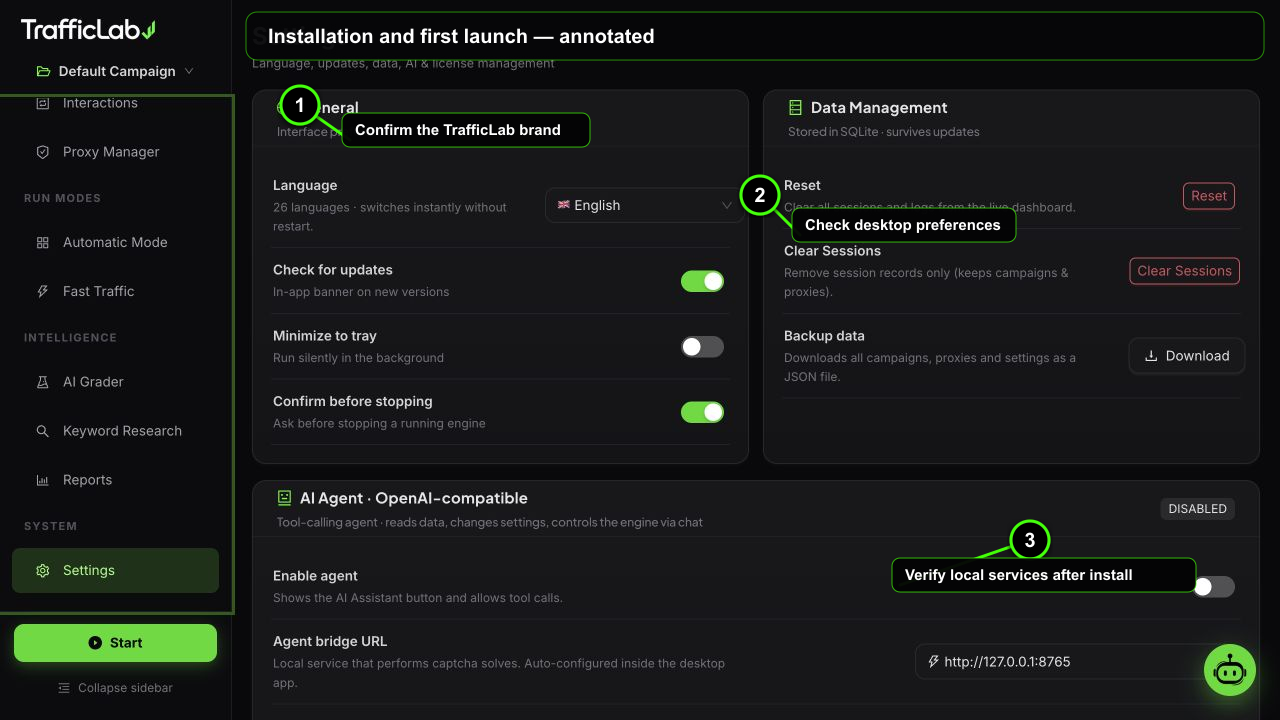
- 1Confirm the TrafficLab brand
- 2Check desktop preferences
- 3Verify local services after install
TrafficLab ships as a packaged 64-bit desktop app for Windows 10 and Windows 11. Setup downloads a private, verified Chromium runtime, so no personal browser is required.
System requirements
Minimum setupThe app is lightweight, the bundled Chromium is the only real dependency
- Windows 10 or Windows 11 (64-bit).
- 2 GB of free RAM per 10 concurrent workers, roughly. The dashboard itself uses very little.
- At least 1 GB of free disk space for the app and its private Chromium runtime.
- An internet connection during setup so the installer can securely download Chromium, and while generating traffic.
- No personal browser or Node.js installation is needed for end users.
Install on Windows
One recommended Windows package ships:
- NSIS installer. Lets you choose the install folder, creates shortcuts, and downloads a private Chromium runtime without touching a personal browser profile.
- Run the installer.
- Pick an install folder and keep the internet connection active while the verified Chromium download completes.
- Launch TrafficLab from the desktop shortcut or start menu.
- The window opens on the Live Dashboard with a default campaign ready.
Windows title bar
Windows builds use a native-style hidden title bar with overlay captions and snap layouts, so the app feels like a modern native program.
Install from source (developers)
If you bought the CodeCanyon package or work with the repository:
bash
npm install
npx playwright install chromium   # downloads the Chromium used by the real engine
npm run electron # build + protect + launch the desktop app- Browser preview:
npm run devruns the same interface in a normal browser with the simulation engine. - Standalone bridge:
npm run bridgestarts the local captcha bridge server on its own. - Packaging:
npm run dist:winproduces the Windows installer inrelease/. - QA:
npm run test:smokeruns a headless smoke test of every page.
Verify the installation
- TrafficLab opens on the Live Dashboard.
- The sidebar shows a Default Campaign and a green Start button at the bottom.
- Open Settings and confirm the About section shows "Hydra Engine v4.1".
- If you plan to use real browsers, captchas or AI: continue with the First Run checklist.
Fastest possible start
You do not need a captcha key, an AI key or proxies to run your first test. The engine works with direct IP, simulation mode and no extras. Add the optional services only when you need them.
Common problems
- Windows SmartScreen warning. Unsigned builds may show "Unknown publisher". Click "More info" then "Run anyway" only when the installer came from the official download. Release authors should Authenticode-sign the installer before distribution.
- The real browser engine alert appears. Real browsers only run inside the desktop app. The browser preview (npm run dev) uses the simulation engine.
- Chromium cannot download during Windows setup. Check the internet connection, firewall and antivirus, then use the installer's Retry button.
One instance at a time
TrafficLab requests a single instance lock. Launching a second copy just focuses the running window, it never starts a second engine.
Next steps
Follow the First Run checklist to configure the AI Agent, Captcha Service and engine, then run your first session.